
Cookie Policy
Check My CTF does not use Cookies, because we believe;
- Cookies are not needed to provide the basic functionality of visualising CTF data.
- The overuse of Cookies in many websites is too intrusive, which can diminish trust in whether the website exists to serve its purpose, or simply to collect data on its visitors.
- Whenever Cookies are used, a Cookie preferences pop-up must be displayed, and these pop-ups can cause frustration to site visitors.
What are Cookies?
For example, when you visit an international shopping website for the first time you may be asked which currency you would like the prices to be displayed in. After choosing your currency, the website might save your answer so that the same currency is automatically shown the next time you visit the website. This preference would be saved in a small file on your computer, and these files are called Cookies.
Cookies are referred to as "First-Party" Cookies if they were created by the website that you are visiting, or "Third-Party" Cookies if they were created by a site other than the one you are visiting.
How to Check for Cookies
There is no code within this website that would create a First-Party Cookie. However the following guide will help with any concerns about how to check for Cookies.
Please Note: This example uses the Google Chrome web browser. If you use a different web browser the options may be slightly different, however the process is broadly similar in all other web browsers.
In your web browser, just to the left of the website address you should see a padlock symbol. By clicking on the padlock, you can see more information about the Cookies currently being used by the website.
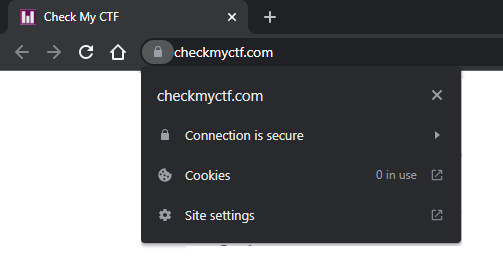
The total number of Cookies displayed should be zero, but in the unexpected event that a Third Party Cookie does appear, these can easily be blocked to ensure that they are not allowed to operate.
Click on the "Cookies" item in the screenshot above to open up the Cookies window (as shown below).
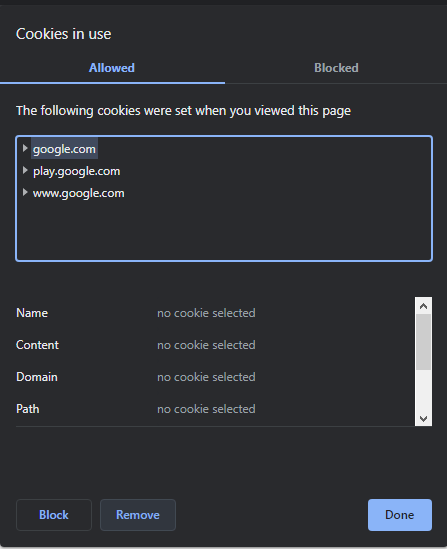
Click on each item in the list shown, and click on the "Block" button, then click the "Done" button.
Refresh the website and repeat the process until zero Cookies are shown.